


Directive Blogs
4 Quick Steps for Optimizing Remote Desktop
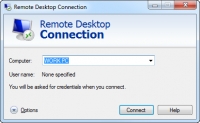
Plenty of our clients use Remote Desktop to access a terminal server or use their workstation from an off-site location. Depending on your connection and the speed of all of the devices in question, remote work can either be pretty seamless or a laggy, sluggish endeavor if your Remote Desktop client isn’t configured correctly. If you are running into a situation where you type something on your keyboard and it takes several long seconds for it to show up, these tweaks can improve performance and reduce input delays.
First you’ll want to open the Remote Desktop Client. You can find that under Programs > Accessories on the Start Menu. Click on Remote Desktop and then click Options on the window that comes up.
- Let’s start with the Display tab. Turn the color depth down to 16-bit (or lower, if you aren’t doing anything that involves a lot of colors). If you are working with images or colors are too distorted to work, bump it back up to 16-bit, but the higher the color settings are, the slower your connection will be.
- On the Local Resources tab, adjust your Audio settings. By default, sound that occurs on the workstation you remote into will broadcast over to the one you are sitting at. If you don’t want it to, you can disable it. Just keep in mind, if you run your email client on the remote location, you won’t hear the email notification sound.
- Also on the Local Resources tab, you can disable printers. Doing this will prevent you from printing to the remote location, so if you do need to print, skip this. If you don’t need to print, this can solve quite a few slowness issues, especially when you first remote in.
- Click on the Experience tab and uncheck all of the options except Bitmap caching. This may diminish some of the flashier windows effects, but saves a ton of bandwidth that you don’t really need to give up to work productively.
Now Connect like you would normally (back on the General tab) and you should things should be running faster!
About the author



Comments